Free and open source · Windows, macOS and Linux
Shapeshifter
A clipboard manager for the 21st century.
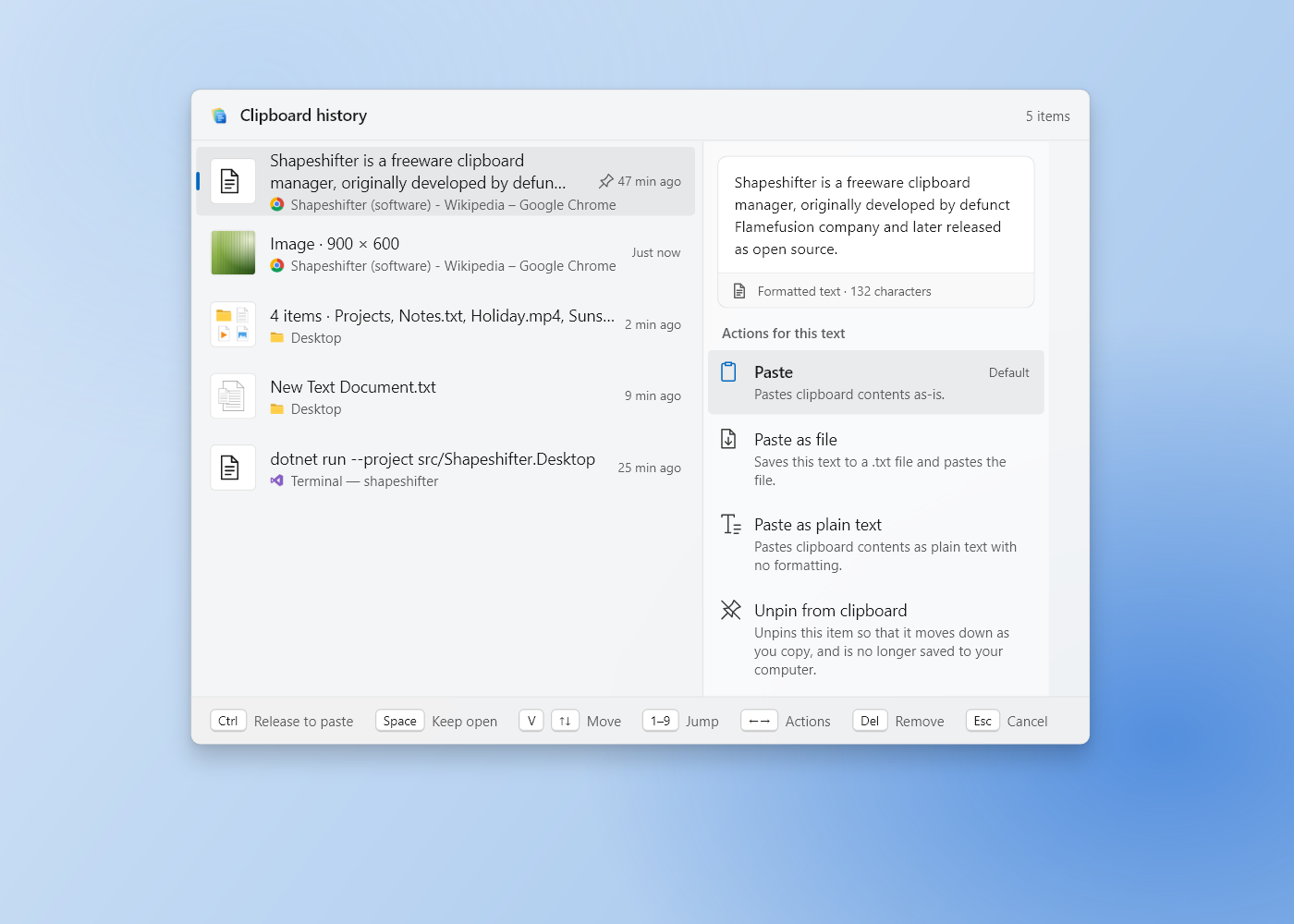
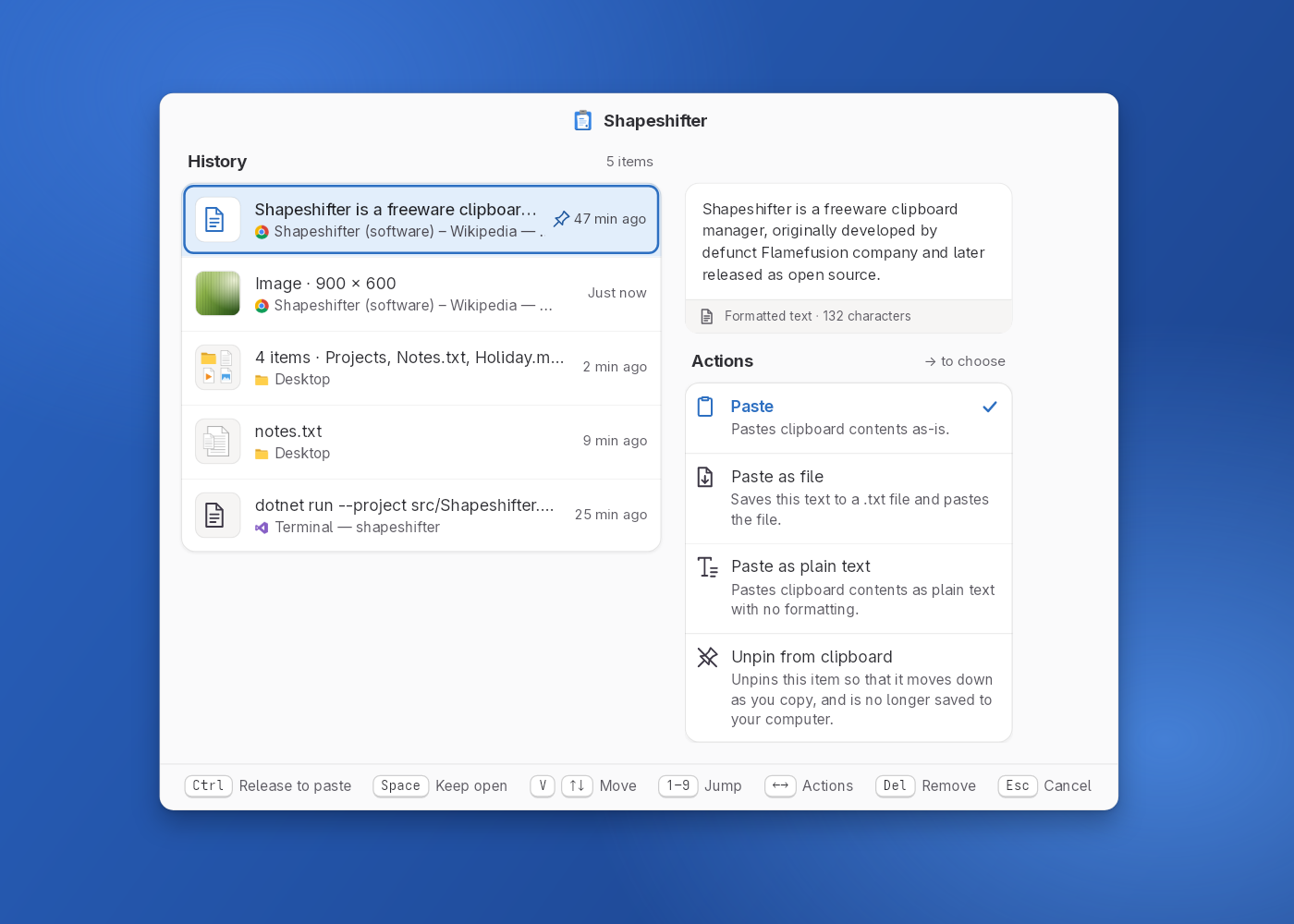
Copy as many things as you like, then choose which one to paste, without losing any of them. Hold Ctrl + V and your clipboard history appears right where you are typing.
How it works
The paste shortcut you already use, held a little longer.
Shapeshifter does not change your habits. A quick Ctrl + V still pastes normally. Keep holding Ctrl and you get your whole history.
-
1Copy as usual
Shapeshifter remembers what you copy, in every clipboard format: rich text, HTML, images, files and application-specific data. Each item is restored exactly when you paste it.
-
2Hold Ctrl, press V
Keep holding Ctrl. After a short delay (300 ms by default) your clipboard history appears.
-
3Pick an item
Press V again, or ↓, to move to an older item and ↑ to go back. ← / → switch between the items and the actions for the selected item.
-
4Release Ctrl
The selected item is pasted, or the selected action runs. Changed your mind? Press Esc and nothing is pasted.
Every key, at a glance
| You do | Shapeshifter does |
|---|---|
| Ctrl + V (tap) | Pastes normally. |
| Hold Ctrl, press V, keep holding Ctrl | Shows your clipboard history after a short delay (300 ms by default). |
| V again, or ↑ / ↓ | Selects the next (older) or previous item. |
| 1 – 9 | Jumps to the item with that number. |
| ← / → | Switches between the items and the actions for the selected item. |
| Delete | Removes the selected item from the history. |
| Esc | Cancels; nothing is pasted. |
| Release Ctrl | Pastes the selected item, or performs the selected action. |
| Space | Keeps the history open after you release Ctrl, so you can look through it at leisure. The keys above then work without Ctrl. |
| Enter | Pastes the selected item right away (the way to paste while the history is kept open). |
On macOS, use Cmd instead of Ctrl. Shortcuts that add another modifier, such as Ctrl + Shift + V in terminals or AltGr + V, are left to the application.
Features
Everything you copy, ready when you need it.
-
Every format, exactly
Rich text, HTML, images, files and application-specific data are all kept, so an item comes back exactly as you copied it.
-
No new habits
A tap of the paste shortcut pastes as always. Shortcuts with another modifier, like Ctrl + Shift + V, are left to the application.
-
At home on every platform
Fluent 2 on Windows, Liquid Glass on macOS and GNOME's libadwaita on Linux. Each look follows your system accent colour.
-
Pin what matters
Pinned items stay in your history and are kept across restarts. Turn on Remember history after restart in Settings to keep the rest too.
-
Respects your passwords
Content that password managers mark as sensitive is never recorded.
-
Yours to tune
From the tray icon, choose the delay before the history appears, how many items to keep, copy notifications and starting at login.
Actions
More than paste, depending on what you copied.
While the history is open, press → to see what you can do with the selected item, ↓ to choose an action and release Ctrl to run it. The actions on offer depend on what the item contains, listed here in the order the picker shows them.
-
Plain text
Words, code, anything without formatting.
- Paste
- Paste as file
- Pin to clipboard
-
Formatted text
Rich text and HTML from browsers, word processors and mail.
- Paste
- Paste as file
- Paste as plain text
- Pin to clipboard
-
Text with links
Any text that contains one or more web addresses.
- Paste
- Paste as file
- Open links
- Pin to clipboard
-
Images
Screenshots and images copied from apps or browsers.
- Paste
- Paste as file
- Upload and paste link
- Pin to clipboard
-
Links to images
A web address that ends in an image, such as
.png.- Paste
- Paste as file
- Copy image from link
- Open links
- Pin to clipboard
-
Files and folders
One or more files or folders copied in a file manager.
- Paste
- Copy as compressed folder
- Pin to clipboard
-
Anything else
Application-specific data, restored exactly as copied.
- Paste
- Pin to clipboard
What each action does
Actions that make something new, such as a compressed folder or a downloaded image, add it to your history as well, so you can paste it again later.
- Paste
- Pastes the item as it was copied, with all of its formats. Always first, so releasing the key right away pastes.
- Paste as file
- Saves text to a
.txtfile, or an image to an image file, and pastes the file. Handy for chat apps and upload forms. - Paste as plain text
- Pastes only the text, without fonts, colours or links.
- Upload and paste link
- Uploads the image to Catbox, a free image host without ads, and pastes a public link to it. Shapeshifter asks before the first upload; nothing else ever leaves your computer.
- Copy as compressed folder
- Copies the files and folders as one compressed (
.zip) folder. - Copy image from link
- Downloads the linked image and copies the image itself.
- Open links
- Opens the links in your browser (at most ten at once).
- Pin to clipboard / Unpin
- Keeps the item at the top of the history and across restarts. Choose it again to unpin.
Screenshots
One app, three native looks.
Shapeshifter picks the look of the platform it runs on, so it feels like part of your desktop.
 Windows “Mica Sheets”
Fluent 2, as on Windows 11. Every look follows your system accent colour.
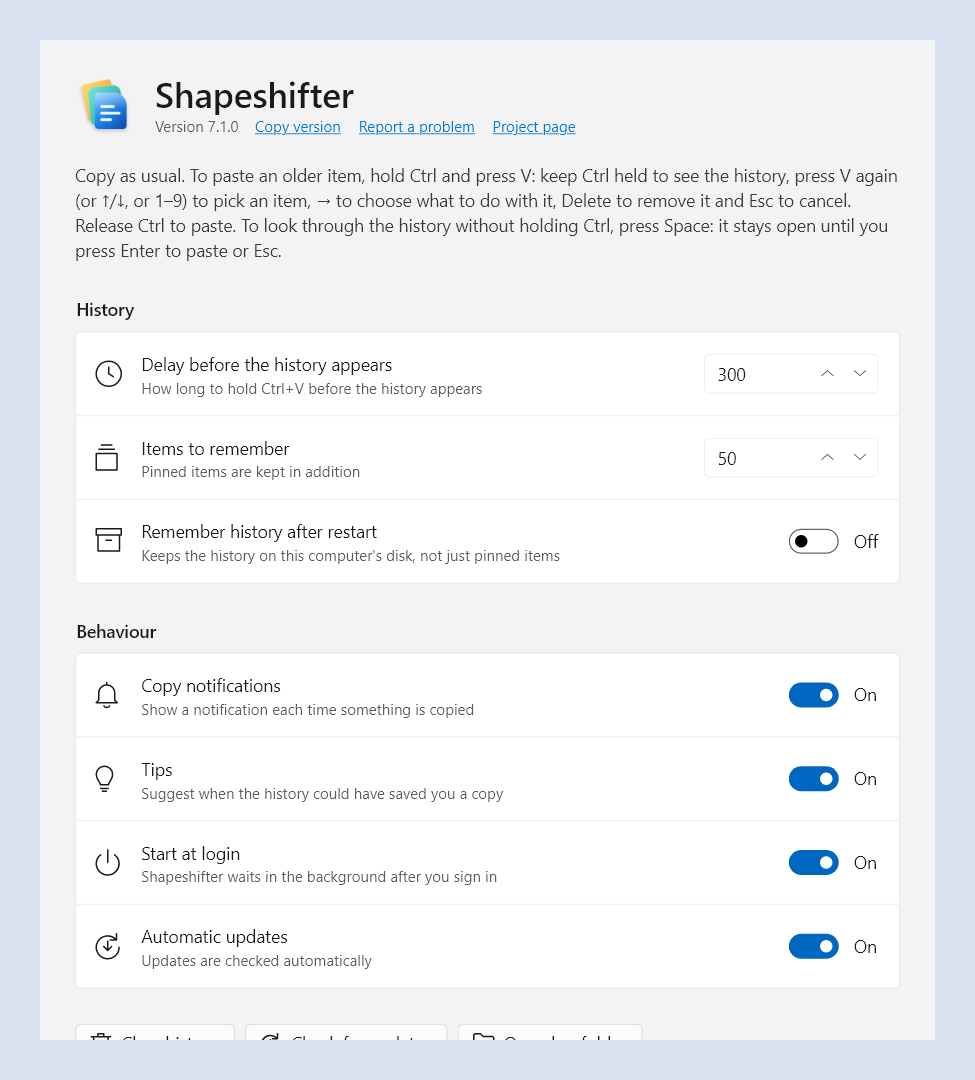
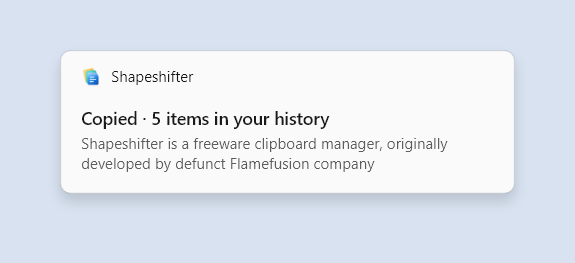
Settings open from the tray icon: the delay before the history appears, how many items to keep, copy notifications and starting at login.
 macOS “Refraction”
Liquid Glass, as on current macOS.
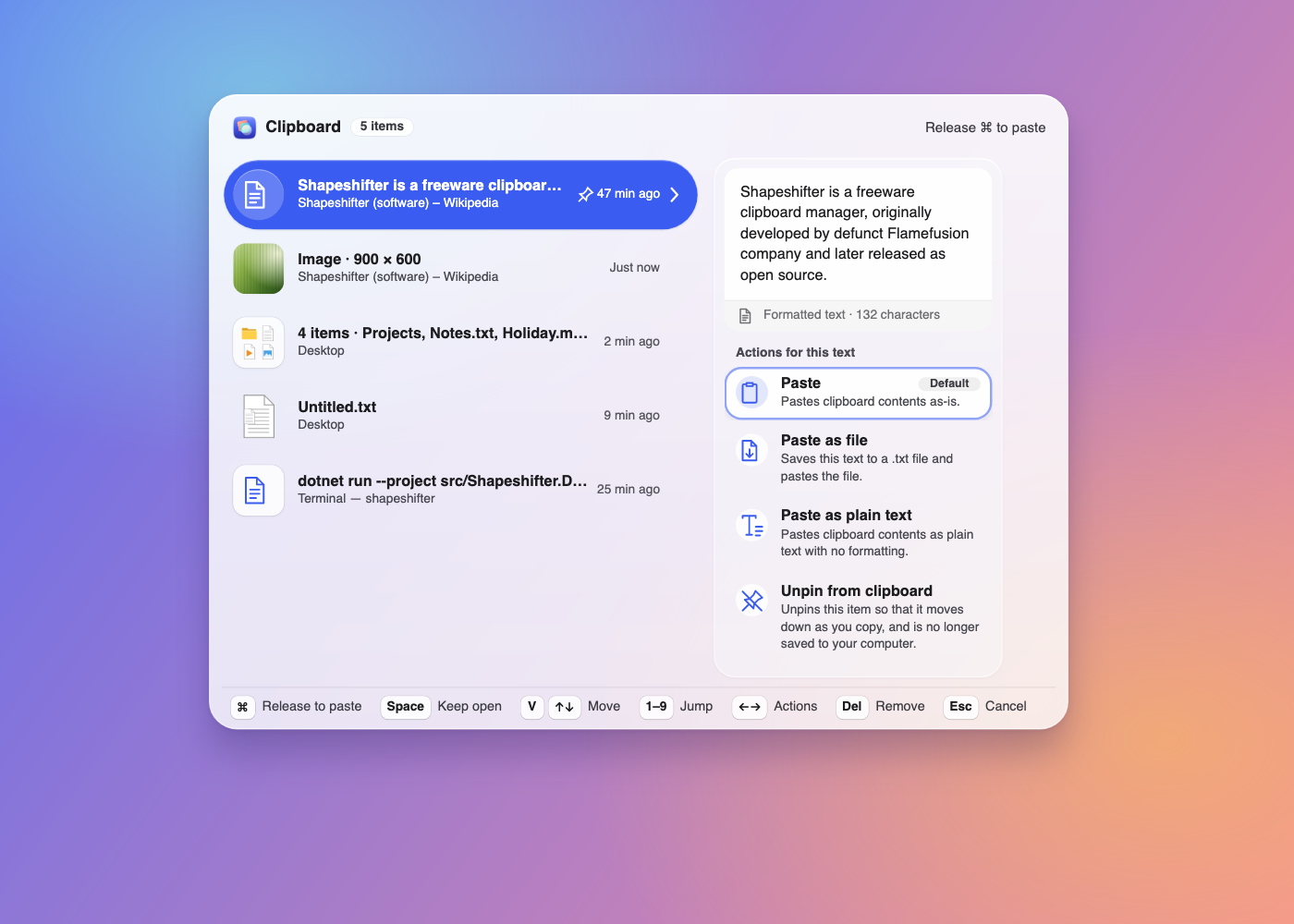
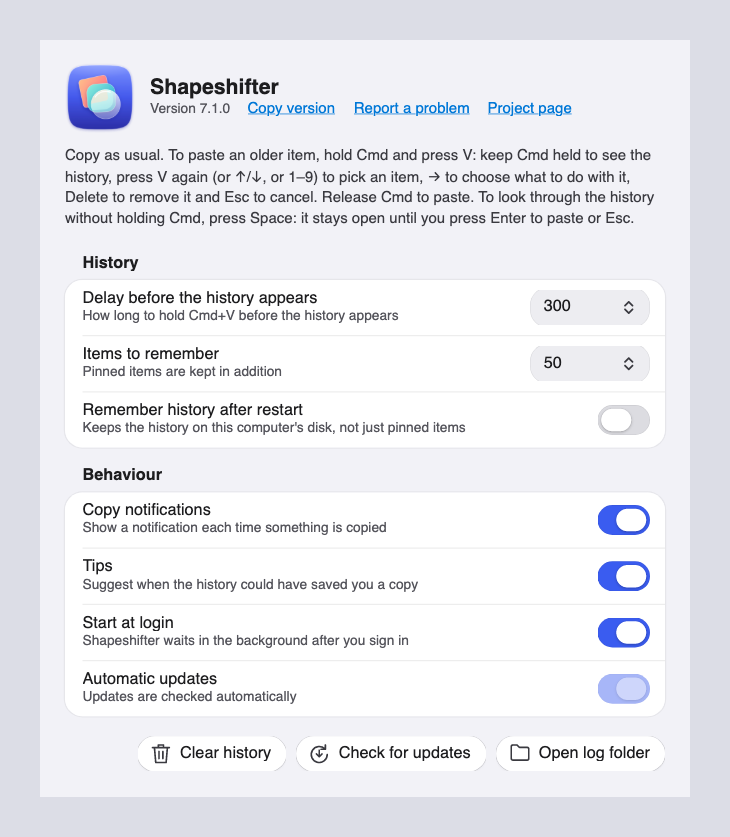
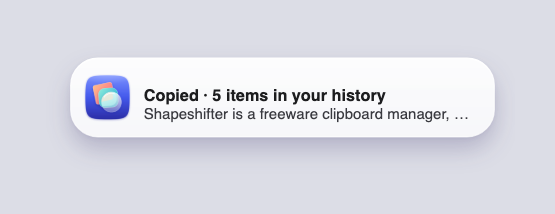
Settings open from the tray icon: the delay before the history appears, how many items to keep, copy notifications and starting at login.
 Linux “Boxed Sheet”
GNOME's libadwaita, used on every Linux desktop.
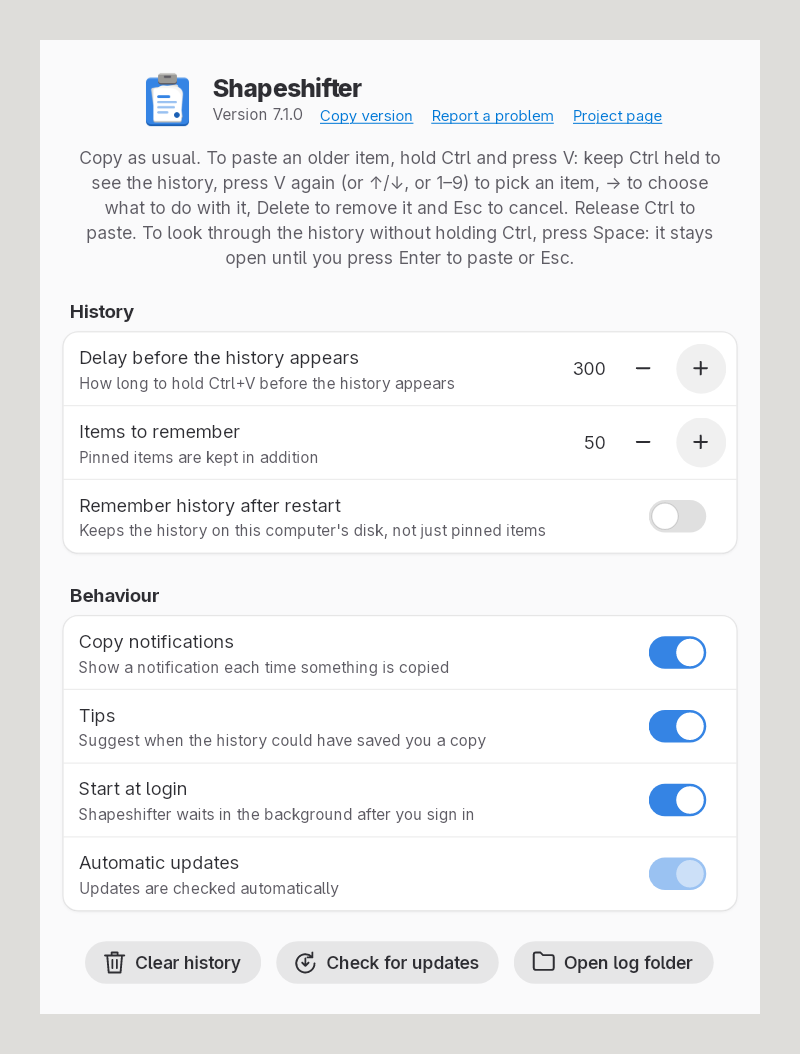
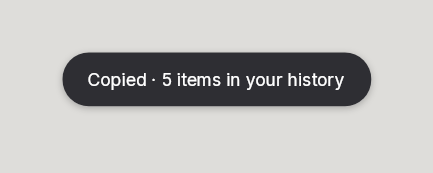
Settings open from the tray icon: the delay before the history appears, how many items to keep, copy notifications and starting at login.
Privacy
Your clipboard stays on your computer.
Shapeshifter does not send your clipboard data anywhere. Pinned items (and, if you turn it on, the rest of your history) are stored only on your own computer, and the code is open for anyone to check. The one exception is an image you choose to Upload and paste link: that image goes to Catbox, and Shapeshifter asks before the first upload.
Passwords are not recorded
Clipboard content that password managers mark as sensitive is skipped, using each platform's convention:
- Windows
ExcludeClipboardContentFromMonitorProcessingandCanIncludeInClipboardHistory - macOS
org.nspasteboard.ConcealedTypeand related types - KDE
x-kde-passwordManagerHint
Where your data lives
| Platform | Settings | Pinned items and logs |
|---|---|---|
| Windows | %APPDATA%\Shapeshifter | %LOCALAPPDATA%\Shapeshifter |
| macOS | ~/Library/Application Support/Shapeshifter | Same; logs in ~/Library/Logs/Shapeshifter |
| Linux | $XDG_CONFIG_HOME/shapeshifter | $XDG_DATA_HOME/shapeshifter |
Platform support
What you need.
Builds are self-contained: there is no .NET runtime or anything else to install first.
-
Supported
Windows 10 and 11
x64 and Arm64
No special permissions needed.
-
Supported
macOS
Apple silicon and Intel
Grant Accessibility access in System Settings → Privacy & Security → Accessibility. macOS requires it for any app that observes or sends keystrokes.
-
Supported
Linux on X11
x64 and Arm64
Works on any X11 desktop. A system tray (StatusNotifierItem or XEmbed) is optional.
-
Limited
Linux on Wayland
x64 and Arm64
Wayland does not let applications observe or send global keystrokes. Shapeshifter runs through XWayland, so the paste gesture only works while an X11 application is focused. Log in to an X11 session for full support.
Download
Get Shapeshifter.
Every download is the latest release from GitHub. Each one is the whole app in a single file: nothing to extract or install.
Windows
Windows 10 and 11. Run the .exe; no special permissions needed.
macOS
Make it executable (chmod +x Shapeshifter-osx-*) and run it. Needs Accessibility access: System Settings → Privacy & Security → Accessibility.
Linux
Make it executable (chmod +x Shapeshifter-linux-*) and run it. Full support on X11. On Wayland, the paste gesture only works in X11 applications.
Open source
Made in the open, by the people who use it.
Shapeshifter is 100% open source and built with .NET 11 and Avalonia. Found a bug or have an idea? Open an issue. Want to fix it yourself? Create a pull request, and we'll look at it.
Support the project
Become a financial contributor on Open Collective and help sustain Shapeshifter and its community.
Contribute on Open Collective